Viewing transactions
Welcome to our portal, where accessing payment information is a breeze. Here's how you can navigate through transactions and settlements.
Transactions
To view transactions, head over to the 'Sales' tab and click on 'History'.
Our system will automatically load your transaction list from the last three months. You can extend this to up to 12 months or select a custom date range.
Transactions will be presented in a list format, providing a transaction summary for each entry.
For a more detailed breakdown of a specific transaction, simply select it.
Watch the video below for a visual guide on navigating transactions.
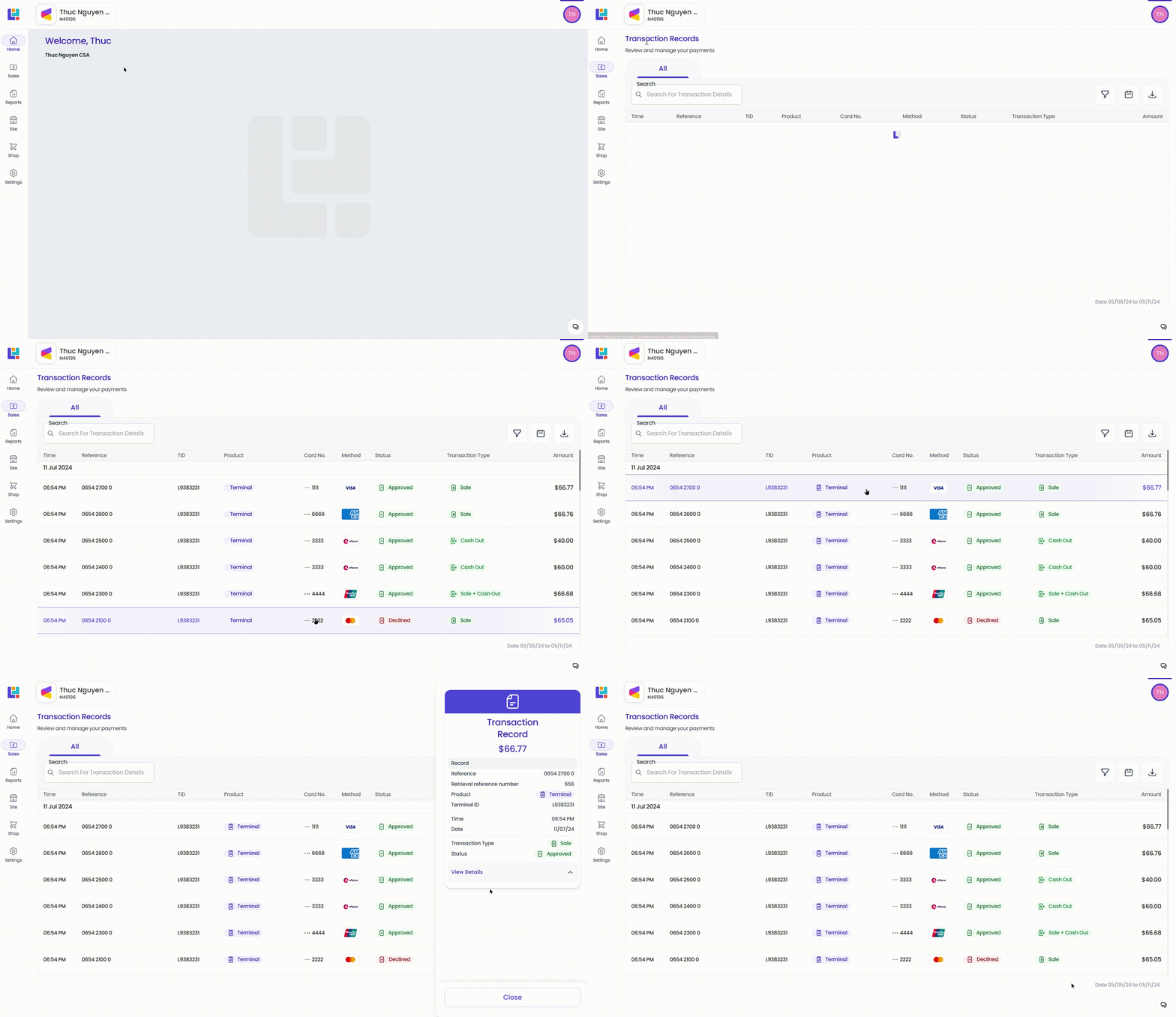 Navigating to the Transaction List
Transaction List
All transactions can be viewed and filtered using the below transaction details:
- Date: the date and time of the transaction
- Reference: the transaction reference number
- TID: Terminal ID
- Product: Terminal, Virtual Terminal, eCommerce or LiveTap
- Card No.: the last 4 digits of card number
- Method: card schemes (VISA/MasterCard/AMEX...) or payment method (WeChat, Alipay...)
- Status: The status of the transaction (i.e. Approved, Declined, Hold)
- Amount: The total amount of the record
Transaction Detail
From the transaction list, click on a row to open a transaction record.
In the below video, click on a void record, and you will see:
- More details of the record
- Other related record: in this example, it is a record for a Sales transaction
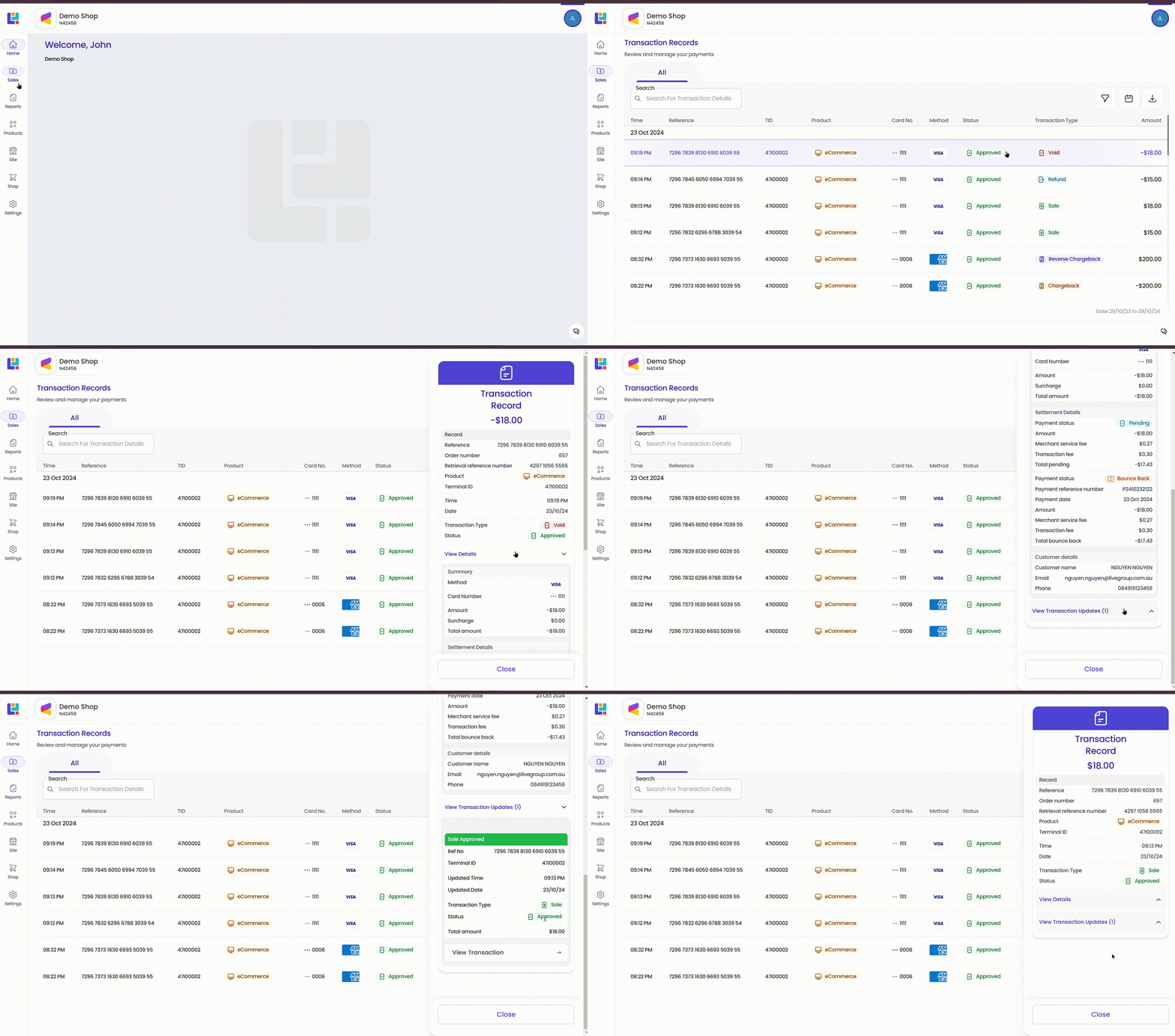 Viewing a Void Record
In the next video, click on another Sales record, you will see:
- More details of the record (fee, payments...)
- Other related records (latest on top):
- chargeback (-$2.34)
- 2nd refund (-$50.00)
- 1st refund (-$50.00)
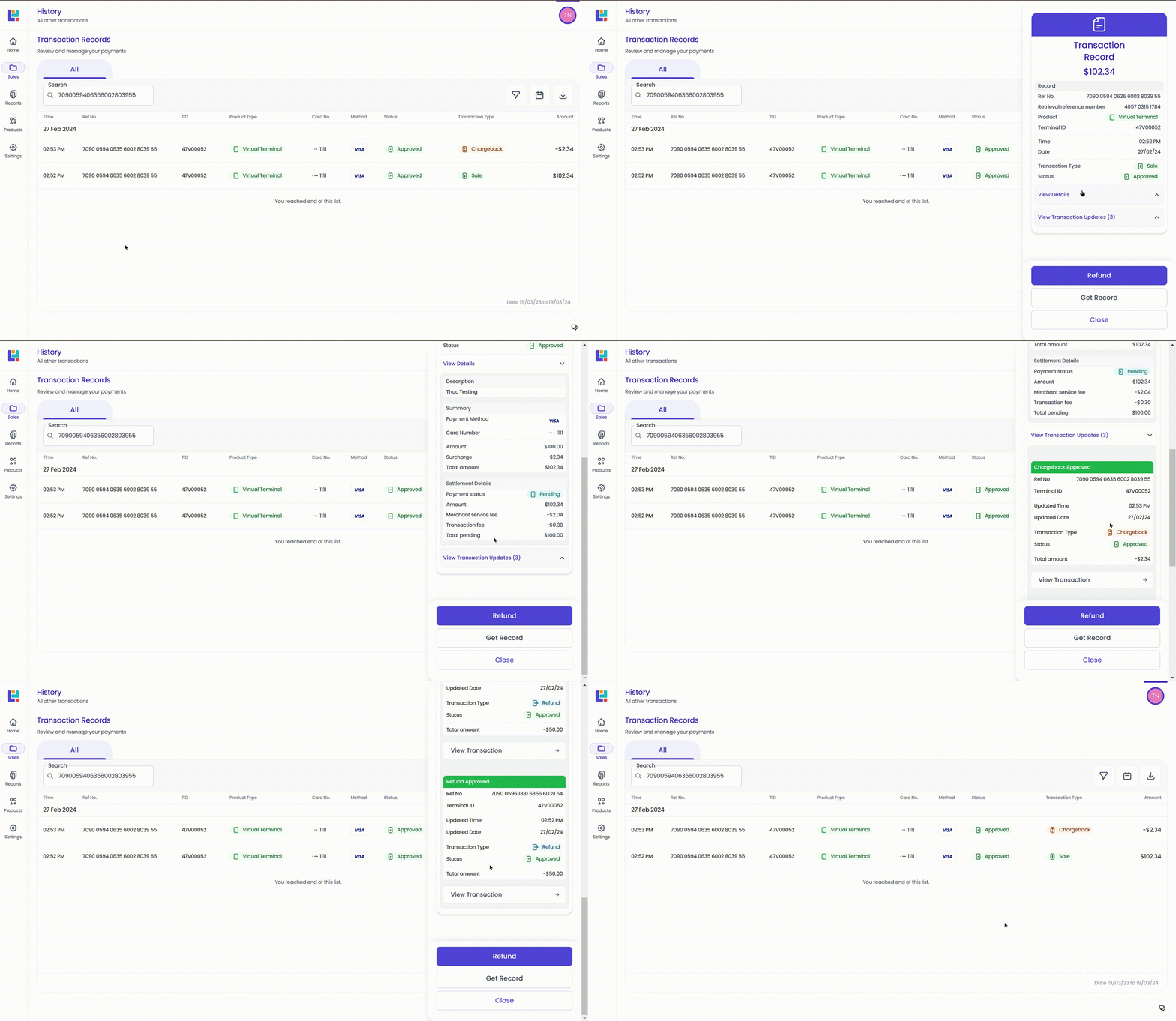 Viewing a Sales Record